

On this page
Teams
Whichever Bifrost plan you're on, you will have at least one team. Even if it's just a personal team for just one user, you.
Teams manage various team-level settings and configuration that applies across your Projects. For plans that allow for multiple team members, it's the place to invite more teammates and manage their access.
Teams is also the center for billing and usage tracking.
Settings
You can change your Team's name at any time from the Team Settings screen. Simply click on or select your team from the top menu and then click the Settings item in the left-hand menu.
NativePHP Licenses
You can also attach NativePHP licenses that you own to your Team via the Settings screen.
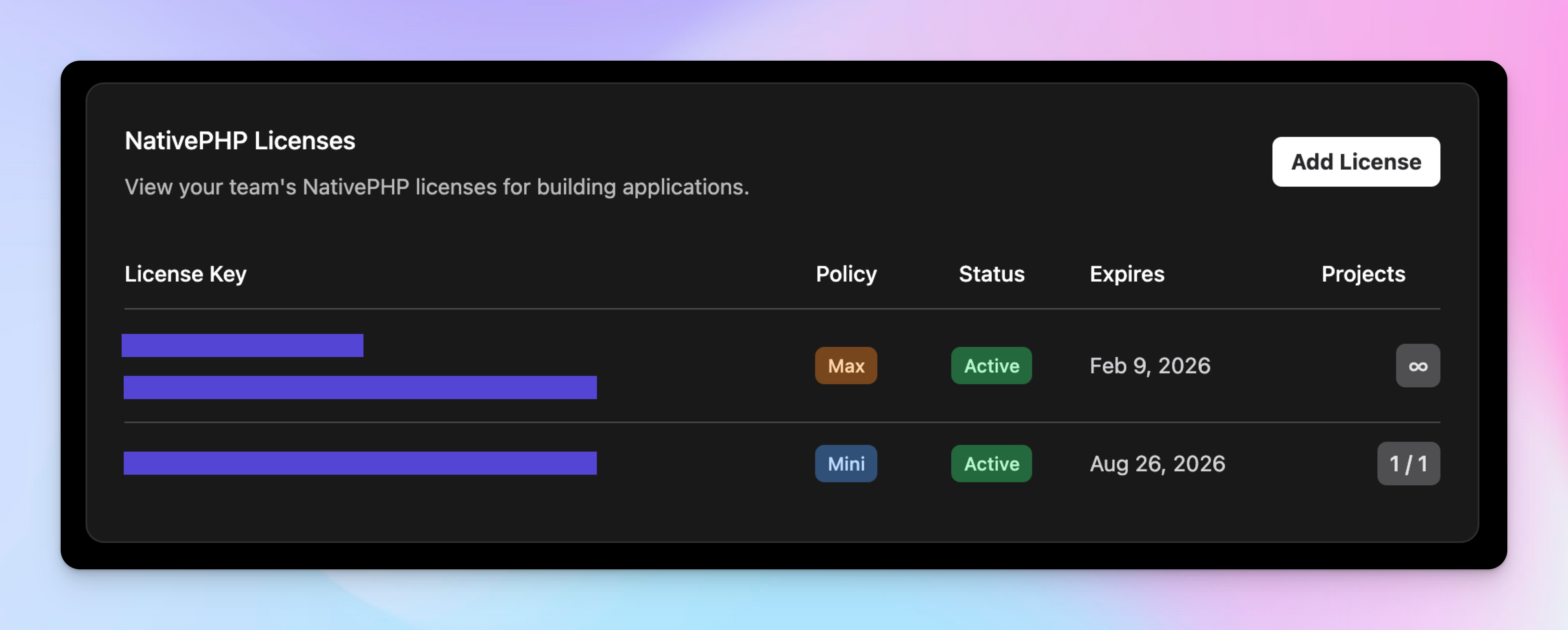
A single license can only be attached to one team, but a team can have many licenses.
Premium Plugins
If your apps use premium plugins from the NativePHP Plugin Marketplace, the team owner
can add your plugin credentials from Settings → Integrations → NativePHP Plugins. Bifrost adds them to each app's
auth.json at build time, so every app in the team can install your plugins without a custom build command.
Paste the composer config http-basic.plugins.nativephp.com ... command from your
Purchased Plugins dashboard into the Email field and Bifrost will
fill in the email and license key for you.
If your apps already set these credentials with a custom build command, the NativePHP Plugins page offers to migrate them to your team in one click and removes those commands from your apps.
Before each build, Bifrost checks your app's composer.lock. If it installs premium plugins and neither your team nor
the app's custom build commands have credentials, the build won't start, because Composer couldn't download them.
Your app's composer.json still needs the plugin repository. It gets added when you run
composer config repositories.nativephp-plugins composer https://plugins.nativephp.com while installing a plugin
locally, so make sure that change is committed.
AI assistants
The team owner controls MCP access from the team’s Settings → MCP page. To connect your assistant, open your account menu and choose Settings → MCP. This personal connection can work across your eligible teams. See Connecting AI assistants for OAuth setup, team access, and migrating legacy connections.